
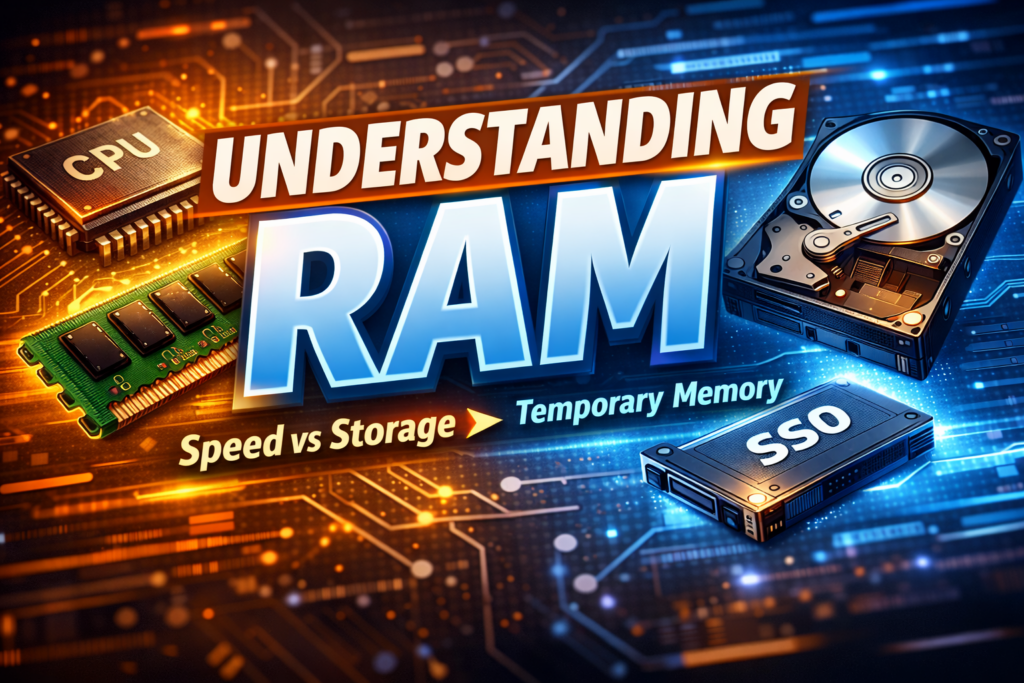
For a long time, RAM was just a number to me. 4 GB felt low, 8 GB felt okay, 16 GB felt expensive. I didn’t really understand what it did until my computer started struggling while doing very normal things—opening a browser, switching tabs, running two apps together. Storage was empty, antivirus was fine… still slow. That’s when RAM finally started to make sense.
Full Form of RAM
RAM stands for Random Access Memory.
Honestly, that name never helped me much. What helped was realizing this: RAM is the memory your computer uses in the moment. It’s not meant to store things forever. It’s meant to hold whatever you’re actively working on, right now.
Turn off the computer, and RAM clears everything. At first that sounds bad, but that’s exactly how it’s supposed to work.
Why RAM Exists in a Computer
This is where the picture became clear for me.
The processor in your computer is extremely fast. Your storage—SSD or hard disk—is much slower in comparison. If the CPU had to fetch every tiny piece of data directly from storage, your system would feel painfully slow.
So RAM exists as a middle space.
When you open an app, load a website, or switch between programs, the system puts that data into RAM so it can be accessed instantly. The more things you do at the same time, the more RAM gets used.
I noticed this clearly when my RAM was low:
- One app worked fine
- Two apps were okay
- Three or four apps and everything slowed down
Not because the computer was bad, but because RAM was full and the system had to constantly move data around.
Once I understood this, RAM stopped feeling like a marketing number. It explained why multitasking feels smooth on some machines and frustrating on others. It’s basically your computer’s short-term working space—and when that space is tight, everything feels cramped.
How RAM Works
This part only really made sense to me after I stopped thinking of RAM as “memory” and started thinking of it as flow. Things moving back and forth, constantly. Once you see it that way, the behavior of a computer suddenly feels logical instead of mysterious.
RAM and CPU Interaction
The CPU is impatient. That’s the simplest way I can put it.
It wants data now. Not in a second. Not after searching a disk. Right now. RAM exists to keep the CPU from wasting time waiting.
When you open an app or click something on the screen, the system pulls the required data from storage and places it into RAM. From there, the CPU reads instructions, processes them, sends results back, and moves on to the next task. This happens continuously, thousands of times per second.
What I noticed over time is that when RAM is sufficient, this interaction feels invisible. Apps open quickly. Switching between tabs feels instant. The CPU always has what it needs.
When RAM is limited, the CPU starts waiting. Data gets pushed out of RAM to make space, then pulled back again when needed. That back-and-forth is what causes lag, stutters, and that annoying pause where everything feels stuck for a moment.
Temporary Nature of RAM
This part confused me at first. Why would a computer use memory that forgets everything when powered off?
Later, it clicked. RAM is temporary on purpose.
Its job isn’t to remember things long-term. Its job is to be fast. Really fast. Making memory permanent adds complexity and slows things down. By staying temporary, RAM can focus entirely on speed.
That’s why:
- Open files vanish when you don’t save them
- Running apps close instantly when power is cut
- Unsaved work disappears after a crash
I learned this lesson the hard way once, and I never forgot it again.
The temporary nature of RAM isn’t a weakness. It’s the reason your computer feels responsive while you’re using it. Storage remembers. RAM works. And once I separated those roles in my head, how RAM works stopped feeling technical and started feeling obvious.
Types of RAM
When I first saw these RAM terms, they felt like marketing labels. DRAM, SRAM, DDR… it all looked like alphabet soup. Over time, after upgrading systems, reading specs, and seeing how machines actually behave, the differences started to feel more practical than technical.
DRAM (Dynamic Random Access Memory)
DRAM is what most people are actually talking about when they say “RAM.”
What helped me understand DRAM is realizing it’s designed to balance speed, cost, and capacity. It’s fast enough for daily work and cheap enough to give you several gigabytes of it. That’s why it’s used as the main system memory in laptops and desktops.
The “dynamic” part means it constantly needs to be refreshed to keep data alive. At first that sounds inefficient, but in practice it works fine. You never notice it. The system handles that refresh in the background while you work.
So when you install 8 GB or 16 GB of RAM in your computer, you’re installing DRAM.
SRAM (Static Random Access Memory)
SRAM felt confusing until I learned where it’s actually used.
You don’t buy SRAM sticks. You don’t upgrade it. It lives inside the CPU as cache memory. And it’s there for one reason: speed.
SRAM is much faster than DRAM, but also much more expensive and bulky. That’s why computers use very small amounts of it. It stores data the CPU is about to use next, so the processor doesn’t even have to reach out to system RAM.
Once I understood this, CPU cache sizes started making sense. L1, L2, L3 cache aren’t just fancy specs — they’re layers of ultra-fast SRAM helping the CPU stay efficient.
DDR RAM (DDR, DDR2, DDR3, DDR4, DDR5)
This is where most people get overwhelmed, but it’s actually simpler than it looks.
DDR just means Double Data Rate, and each new version is basically a refinement. Faster speeds, better efficiency, and higher bandwidth. Not magic — just evolution.
What I learned the practical way:
- You can’t mix DDR generations
- Your motherboard decides what DDR you can use
- Newer DDR doesn’t automatically make an old CPU faster
DDR3 was common for years. DDR4 became the standard. DDR5 is now showing up in newer systems, especially where performance and future-proofing matter.
Once I stopped chasing numbers and focused on compatibility and real usage, RAM upgrades became easier decisions. The type of RAM isn’t about hype. It’s about what your system is built to handle and what you actually need it to do.
RAM vs Storage (RAM vs Hard Disk / SSD)
This comparison finally cleared up a lot of confusion for me. Before that, I used to wonder why my computer felt slow even though I had “lots of space left.” That’s when I realized RAM and storage are doing completely different jobs, even though both are called memory in casual conversation.
Speed Difference
The difference in speed is not small — it’s massive.
RAM is built for instant access. The CPU can read and write to it almost immediately. Storage, even fast SSDs, is much slower in comparison. Hard disks are slower still.
I noticed this clearly when upgrading systems:
- Switching from HDD to SSD made booting faster
- Adding more RAM made everything feel smoother during use
That told me something important. Storage helps you start faster. RAM helps you work faster.
When RAM is low, the system starts using storage as temporary space. That’s when things slow down badly. Apps freeze, switching tabs lags, and the computer feels like it’s thinking too hard about simple tasks.
Data Persistence Difference
This part is simple, but easy to forget.
Storage remembers.
RAM does not.
Files, photos, videos, installed software — all of that lives on storage and stays there even when the computer is off. RAM only holds data while the system is running.
I learned this the hard way once by closing a program without saving. Everything disappeared instantly. The data was only in RAM, and once the app closed, it was gone.
That’s the tradeoff:
- Storage is slow but permanent
- RAM is fast but temporary
Once I separated those roles in my head, a lot of computer behavior stopped feeling random. Slowdowns, crashes, data loss — they all made sense when I asked, “Was this in RAM or was it saved to storage?”
How Much RAM Do You Need?
This question used to annoy me because the answers online were always extreme. Either “4 GB is enough for everything” or “anything less than 32 GB is useless.” Real life sits somewhere in between, and you only really understand it after living with different setups.
What you need depends on what you actually do, not what looks good on a spec sheet.
RAM for Basic Usage
For basic use — browsing, YouTube, emails, documents — RAM doesn’t need to be crazy.
From what I’ve seen and used:
- 4 GB works, but it feels tight
- 8 GB feels comfortable and stress-free
With 8 GB, you can open multiple tabs, switch apps, and not think twice. With 4 GB, you’ll constantly feel the system catching its breath. It works, but you notice the limits.
If someone asks me today for a simple home or office laptop, I’d say 8 GB without hesitation. It gives you room to breathe.
RAM for Gaming
Gaming is where people often misunderstand RAM.
More RAM doesn’t automatically give you more FPS. What it gives you is stability.
In real usage:
- 8 GB is the bare minimum for modern games
- 16 GB is the sweet spot
With 16 GB, games load smoother, background apps don’t interfere, and you avoid sudden stutters. I’ve noticed that games don’t necessarily use all that RAM, but they behave better when it’s available.
Anything above that is usually about future-proofing, not immediate gains.
RAM for Programming and Editing
This is where RAM starts to matter a lot more than people expect.
If you’re:
- Running code editors
- Using browsers with many tabs
- Running local servers
- Working with images or videos
Then RAM gets eaten quickly.
From experience:
- 16 GB feels like the safe baseline
- 32 GB makes things noticeably smoother for heavy workflows
The biggest difference I felt wasn’t speed, but mental comfort. No hesitation before opening another tool. No need to close apps just to free memory.
The biggest mistake I made early on was buying the minimum and hoping software would stay light forever. It doesn’t.
RAM isn’t about showing off specs. It’s about how often your computer makes you wait. Once waiting disappears, you know you’re at the right amount.
How Much RAM Do You Need?
This question used to annoy me because the answers online were always extreme. Either “4 GB is enough for everything” or “anything less than 32 GB is useless.” Real life sits somewhere in between, and you only really understand it after living with different setups.
What you need depends on what you actually do, not what looks good on a spec sheet.
RAM for Basic Usage
For basic use — browsing, YouTube, emails, documents — RAM doesn’t need to be crazy.
From what I’ve seen and used:
- 4 GB works, but it feels tight
- 8 GB feels comfortable and stress-free
With 8 GB, you can open multiple tabs, switch apps, and not think twice. With 4 GB, you’ll constantly feel the system catching its breath. It works, but you notice the limits.
If someone asks me today for a simple home or office laptop, I’d say 8 GB without hesitation. It gives you room to breathe.
RAM for Gaming
Gaming is where people often misunderstand RAM.
More RAM doesn’t automatically give you more FPS. What it gives you is stability.
In real usage:
- 8 GB is the bare minimum for modern games
- 16 GB is the sweet spot
With 16 GB, games load smoother, background apps don’t interfere, and you avoid sudden stutters. I’ve noticed that games don’t necessarily use all that RAM, but they behave better when it’s available.
Anything above that is usually about future-proofing, not immediate gains.
RAM for Programming and Editing
This is where RAM starts to matter a lot more than people expect.
If you’re:
- Running code editors
- Using browsers with many tabs
- Running local servers
- Working with images or videos
Then RAM gets eaten quickly.
From experience:
- 16 GB feels like the safe baseline
- 32 GB makes things noticeably smoother for heavy workflows
The biggest difference I felt wasn’t speed, but mental comfort. No hesitation before opening another tool. No need to close apps just to free memory.
The biggest mistake I made early on was buying the minimum and hoping software would stay light forever. It doesn’t.
RAM isn’t about showing off specs. It’s about how often your computer makes you wait. Once waiting disappears, you know you’re at the right amount.
Common RAM Myths (the way I actually understood them)
“More RAM always means a faster PC”
I used to believe this blindly. If the laptop felt slow, my first thought was, “Need more RAM.” So I upgraded once, expecting everything to suddenly fly.
And… nothing really changed.
That’s when it hit me: my system wasn’t slow because it lacked RAM. It was slow because of other things — CPU limits, background apps, sometimes just heavy software. RAM only helps when you’re running out of it. If you’re not hitting that limit, extra RAM just sits there quietly, doing nothing.
The big speed jump happens when you move from not enough to enough. After that, returns are small. That’s the part nobody tells you.
“Clearing RAM improves performance”
This one messed me up for a while.
I used to close apps constantly. Even tried those RAM cleaner tools once. I felt productive doing it, like I was “optimizing” something. In reality, I was making things worse.
Your system actually uses RAM to remember stuff you’ll likely need again. That’s why apps reopen faster the second time. When you force-clear RAM, you’re basically telling the computer, “Forget everything useful you just learned.”
Unless something is frozen or clearly broken, clearing RAM doesn’t help. It just makes the system reload things again… which is slower.
What changed for me was this mindset shift:
RAM is not something you manage every minute.
It’s something the system manages for you.
Once I stopped worrying about “free RAM” and started paying attention to how my system feels, things made more sense. Smooth switching? No freezes? No constant loading? Then RAM is doing its job.
If you want, we can keep this tone and go into:
- why phones with “low RAM” still feel smooth
- why Chrome gets blamed unfairly
- or how to actually tell when RAM is the problem
Just say it — no tech lecture, promise.
How to Check RAM on Your Device
I remember the first time I tried to check RAM, I overcomplicated it. I thought I’d need some special tool or dig into scary system screens. Turns out, every device already tells you — you just have to know where to look.
Checking RAM on Windows
On Windows, this is surprisingly simple once you’ve done it once.
I usually:
- Right-click on This PC or My Computer
- Click Properties
That screen quietly tells you how much RAM your system has. No drama.
Another way I ended up using more often:
- Press Ctrl + Shift + Esc to open Task Manager
- Go to the Performance tab
- Click Memory
This view is more honest. It doesn’t just show total RAM, it shows how much is actually being used right now. The first time I saw this while opening apps, things finally connected — oh, this is why it slows down.
Checking RAM on macOS
On a Mac, Apple hides it nicely behind clean menus.
The usual path:
- Click the Apple logo (top left)
- Select About This Mac
You’ll see your RAM listed clearly there.
If you want to really understand what’s happening:
- Open Activity Monitor
- Go to the Memory tab
This is where I learned that “used RAM” isn’t always bad. macOS loves caching things, and that’s normal. The pressure graph matters more than free numbers — something I only understood after watching it during heavy work.
Checking RAM on Android
Android took me a bit longer to figure out because every phone feels slightly different.
Most of the time:
- Go to Settings
- Scroll to About phone
- Look for RAM or Memory
On some phones, you’ll need to:
- Enable Developer options
- Then open Memory from there
What surprised me on Android is how aggressively the system manages RAM. Apps close in the background, things reload — and that’s by design. Seeing RAM usage helped me stop blaming my phone for “forgetting” apps. It wasn’t forgetting. It was managing.
Once you check RAM a few times across devices, you stop guessing. Instead of asking “Is my device slow?”, you start asking “Is RAM the reason right now?”
That shift alone saves a lot of confusion.
Can You Upgrade RAM?
I used to assume RAM upgrades were always possible. Just buy more, plug it in, done. That belief lasted until the first time I opened a laptop and realized… yeah, it’s not always that simple. Whether you can upgrade RAM depends a lot on the type of device you’re using.
Desktop RAM Upgrade
Desktops are the easy ones. This is where RAM upgrades actually feel friendly.
Most desktops are built with upgrades in mind. You open the case, find the RAM slots, and that’s it — the path is clear. I’ve upgraded desktops where the hardest part was just remembering which slots to use.
What I learned over time:
- Motherboards have a maximum RAM limit
- RAM type (DDR3, DDR4, DDR5) must match
- Mixing different speeds usually works, but runs at the lowest speed
- Dual-channel setups feel smoother when RAM is matched
If you check compatibility first, desktop RAM upgrades are usually safe, cheap, and very satisfying. You feel the improvement immediately when RAM was the bottleneck.
Laptop RAM Upgrade Limitations
Laptops are where reality hits.
Some laptops let you upgrade RAM easily. Others don’t allow it at all. I’ve owned both, and it’s frustrating when you assume you can upgrade later and then find out the RAM is soldered to the motherboard.
Here’s what limits laptop upgrades:
- Many modern laptops use soldered RAM
- Some allow only one slot, with one fixed module
- There’s often a hard cap on supported RAM
- Ultra-thin designs usually sacrifice upgradeability
The mistake I made once was not checking this before buying. I thought, “I’ll upgrade later if I need to.” Later never came.
Now I always check:
- Is the RAM soldered or slot-based?
- How many slots are available?
- What’s the maximum supported RAM?
If there’s one takeaway from all this, it’s this:
Desktops reward upgrades. Laptops punish assumptions.
If you’re planning to keep a device for years, knowing whether RAM can be upgraded later makes a bigger difference than most people realize.
Conclusion
If there’s one thing I learned the hard way, it’s that RAM isn’t something you understand by reading specs — you understand it by living with it. By feeling the lag, the smoothness, the difference between “just enough” and “not enough.”
Once you stop treating RAM as a buzzword and start seeing it as working space, everything clicks. Why systems slow down. Why upgrades help sometimes and do nothing other times. Why saving your work matters more than you think.
You don’t need to obsess over it. You just need to respect what it does and what it can’t do. When RAM is right for your usage, you forget about it completely — and honestly, that’s the best sign that it’s doing its job.
Our other blogs :
Common API Status Codes Explained
API Request and Response Cycle
Pingback: How Much RAM Do You Actually Need in 2026? - Logic Layers