
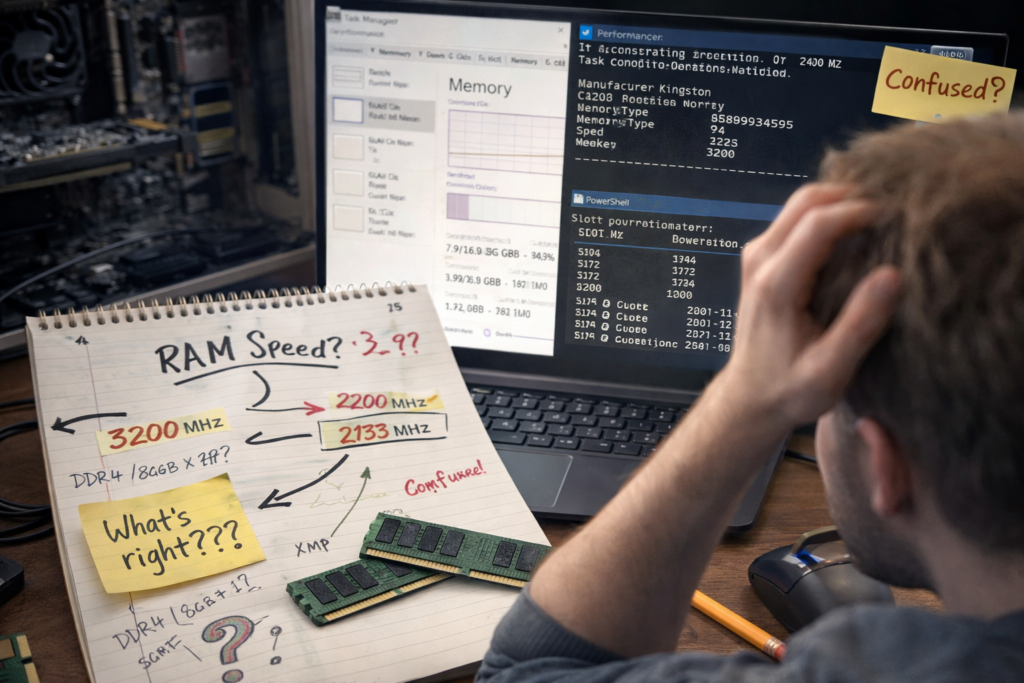
How to Check Your RAM Speed and Type
I remember the first time I tried to check my RAM speed. I expected one clear number. Instead, I saw different values in different places and thought something was wrong with my system. Turns out, nothing was broken — I just didn’t yet understand where Windows gets its memory info from and why each tool shows it slightly differently.
Over time, after upgrading RAM, enabling XMP, and troubleshooting “slow” systems that weren’t actually slow, this part started to make sense. Checking RAM speed and type isn’t hard — but knowing what you’re actually looking at is what usually trips people up.
Let’s start with Windows, since that’s where most confusion happens.
On Windows
Windows gives you multiple ways to look at RAM details. Each one shows a slightly different angle of the truth. I usually check at least two, just to be sure.
Using Task Manager
This is the quickest method and the one most people stumble into first.
You open Task Manager, go to the Performance tab, then click Memory. Right away, you’ll see:
- Total RAM installed
- Speed (shown in MHz)
- RAM type (DDR3 / DDR4 / DDR5)
- Slots used
What I noticed over time is that Task Manager shows the current running speed, not the advertised speed on the RAM box. So if your RAM says 3200 MHz on the package but Task Manager shows 2400 MHz, that usually means XMP isn’t enabled — not that you bought the wrong RAM.
This view is great for a quick sanity check, especially after installing new memory.
Using Command Prompt
Command Prompt feels old-school, but it’s surprisingly reliable for raw hardware info.
When you query memory through it, Windows pulls data directly from the memory modules themselves. This usually tells you:
- RAM type
- Manufacturer
- Maximum supported speed
One thing that confused me early on: Command Prompt often shows the rated speed, not the speed your RAM is actually running at. That’s why people see one number here and a different one in Task Manager and assume something’s broken.
Think of it like this:
- Command Prompt tells you what the RAM can do
- Task Manager tells you what the RAM is doing right now
Once that clicked, the mismatch stopped bothering me.
Using PowerShell
PowerShell gives you the most structured and readable output, especially if you like clean data.
Running memory-related commands here shows:
- RAM speed per stick
- Capacity per module
- Slot-wise information
This is where PowerShell quietly beats the other methods. If you’re using mixed RAM sticks or want to confirm whether both modules are running at the same speed, PowerShell makes that obvious.
I’ve used this when diagnosing dual-channel issues — everything looked fine in Task Manager, but PowerShell revealed one stick behaving differently.
A Small but Important Note
If all three tools show different numbers, that’s normal. They’re answering different questions:
- What RAM is installed
- What speed it supports
- What speed it’s currently running at
Once you understand that distinction, checking RAM stops feeling like guesswork and starts feeling… boring. In a good way.
If you want, next we can go into why BIOS numbers don’t always match Windows, or how to tell if XMP is actually working.
On macOS
4Yeah, this is one of those things I didn’t think about much at first. I jut wanted to know what was inside the Mac, nothing fancy. Over time, I realized I kept checking it in two different ways depending on why I was looking.
Using About This Mac
Most days, this is where I start—mostly out of habit.
I click the Apple menu → About This Mac and glance at the overview. If I need a bit more detail, I open More Info or System Report. It tells me how much memory is installed, whether it’s unified or not, and sometimes the memory type.
It feels clean and reassuring. Almost too reassuring. Like, “don’t worry, everything’s fine.” And most of the time, that’s enough. If I’m just double-checking RAM size or confirming what model I’m on, I close it and move on.
But there were moments when something didn’t sit right. Maybe performance felt odd, or I wanted to be absolutely sure about what the system was using internally. That’s when this screen started to feel a little… surface-level.
Using Terminal
Terminal is where I end up when curiosity turns into suspicion.
I open it and run:
system_profiler SPMemoryDataType
The first time I did this, it looked overwhelming. Just a wall of text. But after a few tries, it started making sense. Slot details, memory type, speed—no polishing, no simplification. Just what the system actually sees.
What I like about this approach is that it doesn’t try to interpret things for you. It just lays everything out and lets you connect the dots. When I really wanted clarity—not comfort—this was the place.
Now I don’t think of these as “easy” versus “advanced.” It’s more emotional than that.
About This Mac is what I open when I want reassurance.
Terminal is what I open when I want honesty.
Funny thing is, the more time I spend with macOS, the faster I jump to Terminal. Not because I’m trying to be technical—just because I’ve learned that’s where the answers stop being vague.
On Linux
Linux never really gives you a soft entry point for this stuff. There’s no friendly “About” screen easing you in. Pretty early on, you accept that if you want to know something for real, you’re opening the terminal. At first it feels intimidating. Later, it just feels normal.
Most of the time, I end up checking memory using two tools, usually one after the other, depending on how confident I feel about what I’m seeing.
Using Terminal (dmidecode)
dmidecode was one of those commands I copied without fully understanding at first. Someone online suggested it, I ran it with sudo, and suddenly I was staring at information that felt very close to the metal.
What stood out to me over time is how unapologetic it is. It pulls data straight from the BIOS or UEFI tables. Memory slots, manufacturers, part numbers, speeds—stuff that feels like it belongs more to the motherboard than to Linux itself.
This is the command I reach for when I’m asking questions like:
What RAM is physically installed?
How many slots actually exist?
Is this system lying to me about what’s inside it?
But I also learned not to treat dmidecode as the full truth. It tells you what the firmware claims is there, not necessarily what the OS is happily using right now. I’ve seen cases where the info was technically correct but practically misleading.
That’s when I stopped trusting it blindly.
Using lshw
lshw -class memory feels like asking Linux directly, “Okay, what do you see?”
The output is still text-heavy, still very Linux, but the perspective is different. This isn’t firmware talking. This is the operating system describing how memory is detected, mapped, and presented for actual use.
When I started comparing it with dmidecode, things clicked. Sometimes they matched perfectly. Sometimes they didn’t—and those mismatches were usually the interesting part.
If a RAM stick wasn’t showing up correctly, or capacity looked wrong, lshw helped me understand what Linux was actually working with, not just what the hardware advertised at boot.
So now I don’t really think of these tools as alternatives. They’re more like two sides of the same conversation.
dmidecode tells the story from the hardware’s point of view.
lshw tells the story from Linux’s point of view.
When both agree, I move on. When they don’t, that’s usually where the real debugging starts.
Using BIOS / UEFI
I don’t go into the BIOS because I want to. I go there because I’m out of options.
Usually something feels wrong before I even think about it. RAM not showing correctly. System acting weird. I’ve already checked inside the OS, maybe even rebooted once hoping it fixes itself. It doesn’t. So I restart again and start tapping Del or F2, half annoyed, half curious.
The BIOS always feels… empty. No colors. No distractions. Just text and menus. It’s like the computer before it becomes a computer.
Where to Find Memory Information
This part took me time to get used to. There’s no universal place. First few times, I was just clicking around, not really sure what I was looking for. Advanced, System Info, Chipset, Memory—one of them usually leads somewhere useful.
When I finally find the memory section, it’s very direct.
This much RAM.
This slot filled.
This one empty.
That’s it.
What I learned the hard way is this: if the RAM doesn’t show up here, nothing else matters. Not Linux. Not Windows. Not drivers. The system simply doesn’t see it. And that usually means getting your hands involved—reseating the stick, changing slots, checking compatibility.
If it does show up here, I relax a bit. Not fully, but enough to know the hardware itself isn’t lying to me. Whatever’s wrong is probably happening later, once the OS takes control.
Now I think of the BIOS as the place where the machine stops pretending. It doesn’t explain. It doesn’t guide. It just shows what exists. And sometimes, that’s exactly what I need.
Using Third-Party Tools
This is usually the route I take when I don’t feel like digging too deep, but I also don’t fully trust what the OS is casually telling me. Third-party tools sit in that comfortable middle space. You install them, click around, and suddenly the system feels more… readable.
They’re especially useful on Windows, where built-in info is either too basic or buried in places I never remember.
CPU-Z (Windows)
The first time I used CPU-Z, it felt almost magical. Tiny app, opens instantly, and boom—tabs full of information.
I mostly end up on the Memory and SPD tabs. One shows how the RAM is currently running—frequency, timings, channel mode. The other shows what each RAM stick actually is, slot by slot. That separation helped me understand something I was confused about for a long time: what the RAM supports versus what it’s actually doing right now.
CPU-Z feels honest, but also a bit nerdy. It doesn’t explain much. It just shows numbers and expects you to keep up. Over time, I grew to like that.
HWiNFO (Windows)
HWiNFO is what I open when I want everything.
The first launch is always overwhelming. Sensors, summaries, expandable trees—too much information all at once. But once you get past that initial shock, it becomes incredibly useful. It shows memory size, speed, timings, and how everything ties into the rest of the system.
What I trust about HWiNFO is how transparent it feels. Nothing is hidden, and nothing is simplified for comfort. If something is running at a weird speed or not behaving as expected, it usually shows up here.
I don’t use it every day, but when something feels off, this is the tool that usually confirms it.
Speccy (Windows)
Speccy feels like the calmest option of the three.
It’s the one I recommend when someone just wants a clear picture without feeling overwhelmed. You open it, and everything is laid out neatly—CPU, RAM, storage, temperatures—all readable, all friendly.
That friendliness comes with a trade-off. It doesn’t go as deep as CPU-Z or HWiNFO. But for quick checks—how much RAM is installed, what speed it’s running at, basic system health—it does the job without making you think too hard.
Over time, I stopped thinking of these tools as competitors. They each fit a different mood.
CPU-Z when I’m curious about specifics.
HWiNFO when I’m troubleshooting seriously.
Speccy when I just want a clear answer and don’t want to dig.
And honestly, having those options makes Windows feel a lot less opaque.
Things That Usually Confuse People
This part hits almost everyone at some point. Definitely hit me. Not because the ideas are hard, but because the way they’re described makes you think something is wrong when it usually isn’t.
I remember staring at numbers, rechecking settings, even rebooting a few times thinking I messed something up. Turned out… nothing was broken. I just didn’t know what I was looking at yet.
Installed Speed vs Rated Speed
This one genuinely annoyed me the first time.
You buy RAM that clearly says 3200 or 3600 on the box. You install it. You check the system. And it shows a lower number. Immediately your brain goes, cool, I got ripped off.
What I didn’t understand back then is that the number on the box isn’t what the system automatically uses. It’s more like what the RAM is capable of if everything agrees. By default, most systems play it safe. Slower speeds, fewer surprises, fewer crashes.
The moment I learned about XMP or DOCP, things finally made sense. Turning that on isn’t overclocking in a risky way. It’s more like saying, “Yes, go ahead, you can run the way you were meant to.”
The RAM didn’t suddenly become faster. It always could do it. The system just needed permission.
Most people panic here, but honestly, this is one of those cases where the system is behaving exactly the way it was designed to.
DDR Type vs Generation
I used to treat DDR numbers like phone versions. DDR4, DDR5… higher number, better product, end of story.
That idea didn’t survive long.
Over time, it became clear that DDR types are more like different worlds. Different slots. Different electrical rules. Different expectations. You can’t mix them, and you can’t force one generation into another just because it’s newer.
When a DDR5 stick doesn’t fit into a DDR4 board, that’s not the system being annoying. That’s the system saying, “This isn’t my language.”
Once I started seeing DDR generations as ecosystems instead of upgrades, the confusion faded. It also explained why plenty of older systems still feel completely fine. They’re not outdated. They’re just built around a different generation.
Single vs Dual Channel
This one sounds way more dramatic than it actually is.
For a long time, I thought dual channel meant some huge speed jump. Like flipping a switch and everything suddenly flying. That’s not really how it works.
What actually changes is how memory is accessed. With two sticks placed correctly, the system can work with them at the same time instead of lining things up one by one.
Sometimes you feel the difference. Games, integrated graphics, heavier workloads—that’s where it shows up. Other times, like basic browsing, you’d never notice.
The funniest part is how often people mess this up just by using the wrong slots. Two sticks installed, dual channel technically possible, but nope—wrong placement. I’ve done it myself. More than once. Nothing humbles you faster than realizing the fix was just moving a stick one slot over.
Once it clicked that dual channel is about layout, not just having two sticks, it stopped feeling mysterious.
Looking back, most of this confusion came from treating memory like a single number. Bigger. Faster. Newer. In reality, it’s more about how everything cooperates. Once you see that, the specs stop feeling scary—and start feeling readable.
Our other blogs :
Common API Status Codes Explained
API Request and Response Cycle
API Authentication and Authorization