
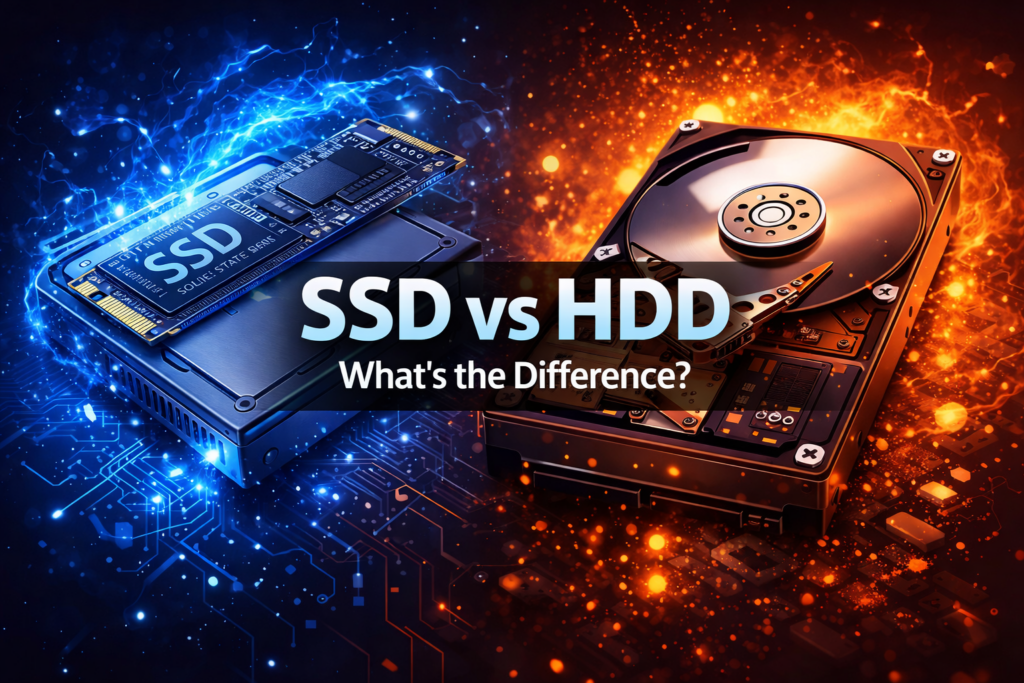
What is an SSD?
When I first heard the term SSD, I honestly didn’t think much of it. It sounded like just another storage option — another place where files sit. Nothing exciting.
What changed my mind was actually using one.
- An SSD is still storage, but it works very differently from old hard drives
- There are no spinning disks and no moving parts inside
- It behaves more like memory than traditional storage
Once that sinks in, a lot of things start to make sense. When your computer asks for data, the SSD doesn’t have to physically search for it. The data is just… there. Ready almost instantly. That single difference quietly changes how fast and smooth everything feels.
How an SSD Stores Data
This part confused me at first because explanations usually get technical very quickly.
What finally helped was simplifying the idea:
- SSDs store data in tiny electronic cells
- These cells work like switches that turn on and off
- No spinning plates
- No moving read heads
- Just electrical signals
Because of this, the SSD doesn’t care where the data is stored. There’s nothing that needs to rotate or line up. When the system asks for a file, the response is immediate.
That’s also why SSDs handle physical movement better:
- Dropping a laptop with an HDD was risky
- With an SSD, there’s simply less that can break
Why SSDs Feel So Fast in Daily Use
This is where numbers and benchmarks stop mattering.
The real difference shows up in small, everyday moments:
- The system boots before you even settle into your chair
- Apps open without that awkward pause
- File searches don’t feel like waiting anymore
Over time, I realized SSD speed isn’t about raw power. It’s about removing tiny delays everywhere. When those delays disappear, the whole system feels lighter and less frustrating.
That’s why even older laptops suddenly feel usable again after an SSD upgrade. People say it “revives” a system — and honestly, that’s not an exaggeration.
Common Types of SSDs (SATA, NVMe, M.2)
This part tripped me up for a while because the names overlap and sound more complex than they really are.
SATA SSDs
- The easiest to understand
- Direct replacement for HDDs
- Uses the same connection
- Much faster than hard drives
- Still limited by older interface speeds
NVMe SSDs
- A big step up in performance
- Connect directly through PCIe lanes
- Remove many of SATA’s bottlenecks
- Difference is most noticeable in heavy tasks and large files
M.2 (the confusing one)
- M.2 is not a speed type
- It’s a form factor
- An M.2 SSD can be SATA or NVMe
- They look similar but perform very differently
Once I understood that M.2 is about shape, not speed, choosing the right SSD stopped being confusing and started feeling logical.
What is an HDD?
For a long time, this was just storage to me. Every computer I used had an HDD, so I never questioned it. Files went in, files came out, and that was it.
An HDD, or hard disk drive, is the older way computers store data. Unlike SSDs, it relies on physical movement to work. Inside, there are spinning disks and a mechanical arm that reads and writes data. It’s actual hardware doing actual motion every time your system needs a file.
You don’t notice this at first. But once you’ve used an SSD and then go back to an HDD, the difference becomes impossible to ignore.
How an HDD Works Internally
This is where things start to make sense.
Inside an HDD:
- There are round metal disks (called platters)
- These platters spin constantly when the drive is in use
- A read/write head moves back and forth across them
- Data is read from specific physical locations on those spinning disks
So when your computer asks for a file, the drive has to:
- Spin the disk to the right position
- Move the read head to the correct spot
- Then finally read the data
All of this happens very fast for a machine, but it’s still waiting on physical movement. That waiting is what creates delays, even if they’re small.
This is also why HDDs don’t like sudden movement. Dropping a laptop while the drive is active can genuinely damage it.
Why HDDs Are Slower but Still Used
Once you understand the mechanics, the speed difference makes sense.
HDDs are slower because:
- They depend on spinning parts
- Data access time changes based on where files are stored
- Fragmentation makes things worse over time
But here’s the important part: they’re still used for a reason.
- They’re much cheaper per GB
- You can get very large storage sizes for less money
- For data that doesn’t need to be accessed constantly, speed isn’t critical
In my experience, HDDs feel slow not because they’re “bad,” but because modern software expects faster storage now.
Typical Use Cases for Hard Disk Drives
HDDs still make sense in the right situations:
- Mass storage for videos, photos, backups
- Secondary drives alongside an SSD
- Archiving old data you don’t open often
- Budget systems where storage size matters more than speed
A common and practical setup is:
- SSD for the operating system and apps
- HDD for everything else
That balance is why HDDs haven’t disappeared yet. They’re not fast, but they’re still useful when you know what you’re using them for.
Key Differences Between SSD and HDD
On paper, SSDs and HDDs both do the same job: store your data. But in day-to-day use, they feel very different. Most of that comes down to how they access data and what’s happening physically inside them.
Speed: Boot Time, App Loading, File Transfers
This is the difference everyone notices first.
With an HDD:
- Booting the system takes time
- Apps feel like they “think” before opening
- Large file transfers crawl, especially over time
With an SSD:
- The system boots almost instantly
- Apps open as soon as you click them
- File transfers feel smooth and consistent
What I noticed over time is that SSD speed isn’t about one big jump. It’s about removing all those little waits that add up and slowly annoy you without you realizing why.
Durability: Moving Parts vs Solid-State
This difference is more important than it sounds.
HDDs:
- Have spinning disks and moving read heads
- Can be damaged by drops or sudden movement
- Wear down mechanically over time
SSDs:
- Have no moving parts
- Handle movement and vibration much better
- Are generally more reliable for laptops
This is why SSDs make so much sense in portable devices. There’s simply less that can physically go wrong.
Power Consumption and Heat
I didn’t think this mattered until I started using laptops more.
HDDs:
- Use more power to keep disks spinning
- Generate more heat during operation
SSDs:
- Use less power
- Run cooler
- Help improve battery life, even if slightly
It’s not dramatic, but over long usage, the difference is noticeable — especially in thin or older laptops.
Noise and Vibration
This one is subtle, but once you notice it, you can’t un-notice it.
HDDs:
- Make faint clicking or spinning sounds
- Cause small vibrations, especially under load
SSDs:
- Are completely silent
- No vibration at all
In quiet rooms or late at night, that silence actually matters more than you’d expect.
Price per GB and Storage Capacity
This is where HDDs still fight back.
HDDs:
- Much cheaper per GB
- Easy to get very large storage sizes
- Better for bulk data and archives
SSDs:
- More expensive per GB
- Large capacities cost noticeably more
- Best used where speed actually matters
In real setups, this often leads to a mix:
- SSD for the system and apps
- HDD for storage and backups
That balance exists because each drive still has its place.
SSD vs HDD in Real-Life Scenarios
Most people don’t care about interfaces or specs. They care about how their laptop feels when they open it every day. This is where SSDs and HDDs separate very clearly.
For Everyday Users
For normal daily use, the difference shows up almost immediately.
With an HDD:
- The system feels slow to wake up
- Apps take a moment to respond
- The machine feels “okay” but never snappy
With an SSD:
- The system starts quickly
- Browsers and apps open without hesitation
- Everything feels smoother, even on older hardware
For everyday users, an SSD doesn’t just make things faster — it makes the computer feel less frustrating. That’s usually enough reason by itself.
For Gamers
Gaming is where opinions often get mixed, so real expectations matter.
SSDs:
- Reduce game loading times
- Make fast travel and level loading smoother
- Help large modern games feel less sluggish
HDDs:
- Still run games just fine once they’re loaded
- Struggle with long load times in newer titles
In my experience, an SSD won’t suddenly give you higher FPS, but it will remove a lot of waiting. Once you get used to quick load screens, going back to an HDD feels painful.
For Office Work and Programming
This is where SSDs quietly become essential.
Office tasks and development involve:
- Opening many small files
- Switching between apps
- Compiling code or handling databases
With an HDD, these actions stack delays on top of each other. With an SSD, everything stays responsive, even under pressure.
For programming especially, SSDs make builds, searches, and environment startups noticeably smoother. It’s not flashy, but it saves time every single day.
For Storage and Backups
This is where HDDs still make perfect sense.
HDDs are great for:
- Large media collections
- Backups you don’t access often
- Long-term storage
Speed doesn’t matter much here, and the lower cost per GB becomes a big advantage.
A common real-world setup is:
- SSD for the operating system and active work
- HDD for storage and backups
That combination gives you speed where it matters and space where it counts.
Which One Should You Choose?
If you’re expecting a single “best” option, this is where things get nuanced. SSDs and HDDs solve different problems. Once you think in terms of how you use your computer, the choice becomes much easier.
When an SSD Makes More Sense
An SSD is the right choice if you care about how your system feels day to day.
Choose an SSD if:
- You want fast boot times and instant app launches
- You use your system daily and value responsiveness
- You work with many small files, apps, or tabs
- You’re upgrading an older laptop and want it to feel new again
In my experience, if someone can afford only one upgrade, an SSD gives the biggest improvement you can actually feel. It changes how the entire system behaves, not just one task.
When an HDD is Still a Practical Option
HDDs aren’t obsolete — they’re just specialized now.
An HDD still makes sense if:
- You need a lot of storage for less money
- You’re storing backups, videos, or archives
- Speed isn’t critical for how often you access the data
For these use cases, paying extra for SSD speed doesn’t really give you much back. HDDs do the job quietly in the background.
Using SSD and HDD Together (Best of Both Worlds)
This is where things come together nicely.
A very practical setup is:
- SSD for the operating system, apps, and active projects
- HDD for files, media, and backups
This way:
- Your system stays fast and responsive
- You don’t have to worry about storage space
- You get better value for your money
This setup is common for a reason. It matches how people actually use computers, instead of forcing everything into one drive.
Conclusion
At the end of the day, SSDs and HDDs aren’t competing in the same way they used to. They’re solving different problems now.
SSDs change how a computer feels. They remove delays, make systems more responsive, and turn even older machines into something that feels usable again. If speed, smoothness, and everyday comfort matter to you, an SSD is hard to beat.
HDDs, on the other hand, are still about space and value. When you need lots of storage and don’t access the data constantly, they do the job without costing much.
For most people, the best choice isn’t one or the other — it’s both. An SSD for the system and active work, and an HDD for storage and backups. Once you understand that balance, choosing stops being confusing and starts feeling obvious.
Our other blogs :
Common API Status Codes Explained
API Request and Response Cycle
API Authentication and Authorization
How Much RAM Do You Actually Need in 2026?